Azure
SamaFlow as Azure App Service with Postgres: Using Terraform
Prerequisites
- Azure Account: Ensure you have an Azure account with an active subscription. If you do not have one, sign up at Azure Portal.
- Terraform: Install Terraform CLI on your machine. Download it from Terraform's website.
- Azure CLI: Install Azure CLI. Instructions can be found on the Azure CLI documentation page.
Setting Up Your Environment
- Login to Azure: Open your terminal or command prompt and login to Azure CLI using:
az login --tenant <Your Subscription ID> --use-device-code
Follow the prompts to complete the login process.
- Set Subscription: After logging in, set the Azure subscription using:
az account set --subscription <Your Subscription ID>
- Initialize Terraform:
Create a terraform.tfvars file in your Terraform project directory, if it's not already there, and add the following content:
subscription_name = "subscrpiton_name"
subscription_id = "subscription id"
project_name = "webapp_name"
db_username = "PostgresUserName"
db_password = "strongPostgresPassword"
flowise_secretkey_overwrite = "longandStrongSecretKey"
webapp_ip_rules = [
  {
    name = "AllowedIP"
    ip_address = "X.X.X.X/32"
    headers = null
    virtual_network_subnet_id = null
    subnet_id = null
    service_tag = null
    priority = 300
    action = "Allow"
  }
]
postgres_ip_rules = {
  "ValbyOfficeIP" = "X.X.X.X"
  // Add more key-value pairs as needed
}
source_image = "flowiseai/samaflow:latest"
tagged_image = "flow:v1"
Replace the placeholders with actual values for your setup.
The file tree structure is as follows:
flow
├── database.tf
├── main.tf
├── network.tf
├── output.tf
├── providers.tf
├── terraform.tfvars
├── terraform.tfvars.example
├── variables.tf
├── webapp.tf
├── .gitignore // ignore your .tfvars and .lock.hcf, .terraform
Each .tf file in the Terraform configuration likely contains a different aspect of the infrastructure as code:
`database.tf` would define the configuration for the Postgres database.
```yaml // database.tf // Database instance resource "azurerm_postgresql_flexible_server" "postgres" { name = "postgresql-${var.project_name}" location = azurerm_resource_group.rg.location resource_group_name = azurerm_resource_group.rg.name sku_name = "GP_Standard_D2s_v3" storage_mb = 32768 version = "11" delegated_subnet_id = azurerm_subnet.dbsubnet.id private_dns_zone_id = azurerm_private_dns_zone.postgres.id backup_retention_days = 7 geo_redundant_backup_enabled = false auto_grow_enabled = false administrator_login = var.db_username administrator_password = var.db_password zone = "2" lifecycle { prevent_destroy = false } } // Firewall resource "azurerm_postgresql_flexible_server_firewall_rule" "pg_firewall" { for_each = var.postgres_ip_rules name = each.key server_id = azurerm_postgresql_flexible_server.postgres.id start_ip_address = each.value end_ip_address = each.value } // Database resource "azurerm_postgresql_flexible_server_database" "production" { name = "production" server_id = azurerm_postgresql_flexible_server.postgres.id charset = "UTF8" collation = "en_US.utf8" # prevent the possibility of accidental data loss lifecycle { prevent_destroy = false } } // Transport off resource "azurerm_postgresql_flexible_server_configuration" "postgres_config" { name = "require_secure_transport" server_id = azurerm_postgresql_flexible_server.postgres.id value = "off" } ````main.tf` could be the main configuration file that may include the Azure provider configuration and defines the Azure resource group.
```yaml // main.tf resource "random_string" "resource_code" { length = 5 special = false upper = false } // resource group resource "azurerm_resource_group" "rg" { location = var.resource_group_location name = "rg-${var.project_name}" } // Storage Account resource "azurerm_storage_account" "sa" { name = "${var.subscription_name}${random_string.resource_code.result}" resource_group_name = azurerm_resource_group.rg.name location = azurerm_resource_group.rg.location account_tier = "Standard" account_replication_type = "LRS" blob_properties { versioning_enabled = true } } // File share resource "azurerm_storage_share" "samaflow-share" { name = "samaflow" storage_account_name = azurerm_storage_account.sa.name quota = 50 } ````network.tf` would include networking resources such as virtual networks, subnets, and network security groups.
```yaml // network.tf // Vnet resource "azurerm_virtual_network" "vnet" { name = "vn-${var.project_name}" location = azurerm_resource_group.rg.location resource_group_name = azurerm_resource_group.rg.name address_space = ["10.3.0.0/16"] } resource "azurerm_subnet" "dbsubnet" { name = "db-subnet-${var.project_name}" resource_group_name = azurerm_resource_group.rg.name virtual_network_name = azurerm_virtual_network.vnet.name address_prefixes = ["10.3.1.0/24"] private_endpoint_network_policies_enabled = true delegation { name = "delegation" service_delegation { name = "Microsoft.DBforPostgreSQL/flexibleServers" } } lifecycle { ignore_changes = [ service_endpoints, delegation ] } } resource "azurerm_subnet" "webappsubnet" { name = "web-app-subnet-${var.project_name}" resource_group_name = azurerm_resource_group.rg.name virtual_network_name = azurerm_virtual_network.vnet.name address_prefixes = ["10.3.8.0/24"] delegation { name = "delegation" service_delegation { name = "Microsoft.Web/serverFarms" } } lifecycle { ignore_changes = [ delegation ] } } resource "azurerm_private_dns_zone" "postgres" { name = "private.postgres.database.azure.com" resource_group_name = azurerm_resource_group.rg.name } resource "azurerm_private_dns_zone_virtual_network_link" "postgres" { name = "private-postgres-vnet-link" resource_group_name = azurerm_resource_group.rg.name private_dns_zone_name = azurerm_private_dns_zone.postgres.name virtual_network_id = azurerm_virtual_network.vnet.id } ````providers.tf` would define the Terraform providers, such as Azure.
```yaml // providers.tf terraform { required_version = ">=0.12" required_providers { azurerm = { source = "hashicorp/azurerm" version = "=3.87.0" } random = { source = "hashicorp/random" version = "~>3.0" } } } provider "azurerm" { subscription_id = var.subscription_id features {} } ````variables.tf` would declare variables used across all `.tf` files.
```yaml // variables.tf variable "resource_group_location" { default = "westeurope" description = "Location of the resource group." } variable "container_rg_name" { default = "acrllm" description = "Name of container regrestry." } variable "subscription_id" { type = string sensitive = true description = "Service Subscription ID" } variable "subscription_name" { type = string description = "Service Subscription Name" } variable "project_name" { type = string description = "Project Name" } variable "db_username" { type = string description = "DB User Name" } variable "db_password" { type = string sensitive = true description = "DB Password" } variable "flowise_secretkey_overwrite" { type = string sensitive = true description = "SamaFlow secret key" } variable "webapp_ip_rules" { type = list(object({ name = string ip_address = string headers = string virtual_network_subnet_id = string subnet_id = string service_tag = string priority = number action = string })) } variable "postgres_ip_rules" { description = "A map of IP addresses and their corresponding names for firewall rules" type = map(string) default = {} } variable "flowise_image" { type = string description = "SamaFlow image from Docker Hub" } variable "tagged_image" { type = string description = "Tag for samaflow image version" } ````webapp.tf` Azure App Services that includes a service plan and linux web app
```yaml // webapp.tf #Create the Linux App Service Plan resource "azurerm_service_plan" "webappsp" { name = "asp${var.project_name}" resource_group_name = azurerm_resource_group.rg.name location = azurerm_resource_group.rg.location os_type = "Linux" sku_name = "P3v3" } resource "azurerm_linux_web_app" "webapp" { name = var.project_name resource_group_name = azurerm_resource_group.rg.name location = azurerm_resource_group.rg.location service_plan_id = azurerm_service_plan.webappsp.id app_settings = { DOCKER_ENABLE_CI = true WEBSITES_CONTAINER_START_TIME_LIMIT = 1800 WEBSITES_ENABLE_APP_SERVICE_STORAGE = false DATABASE_TYPE = "postgres" DATABASE_HOST = azurerm_postgresql_flexible_server.postgres.fqdn DATABASE_NAME = azurerm_postgresql_flexible_server_database.production.name DATABASE_USER = azurerm_postgresql_flexible_server.postgres.administrator_login DATABASE_PASSWORD = azurerm_postgresql_flexible_server.postgres.administrator_password DATABASE_PORT = 5432 FLOWISE_SECRETKEY_OVERWRITE = var.flowise_secretkey_overwrite PORT = 3000 SECRETKEY_PATH = "/root" DOCKER_IMAGE_TAG = var.tagged_image } storage_account { name = "${var.project_name}_mount" access_key = azurerm_storage_account.sa.primary_access_key account_name = azurerm_storage_account.sa.name share_name = azurerm_storage_share.samaflow-share.name type = "AzureFiles" mount_path = "/root" } https_only = true site_config { always_on = true vnet_route_all_enabled = true dynamic "ip_restriction" { for_each = var.webapp_ip_rules content { name = ip_restriction.value.name ip_address = ip_restriction.value.ip_address } } application_stack { docker_image_name = var.flowise_image docker_registry_url = "https://${azurerm_container_registry.acr.login_server}" docker_registry_username = azurerm_container_registry.acr.admin_username docker_registry_password = azurerm_container_registry.acr.admin_password } } logs { http_logs { file_system { retention_in_days = 7 retention_in_mb = 35 } } } identity { type = "SystemAssigned" } lifecycle { create_before_destroy = false ignore_changes = [ virtual_network_subnet_id ] } } resource "azurerm_app_service_virtual_network_swift_connection" "webappvnetintegrationconnection" { app_service_id = azurerm_linux_web_app.webapp.id subnet_id = azurerm_subnet.webappsubnet.id depends_on = [azurerm_linux_web_app.webapp, azurerm_subnet.webappsubnet] } ```Note: The .terraform directory is created by Terraform when initializing a project (terraform init) and it contains the plugins and binary files needed for Terraform to run. The .terraform.lock.hcl file is used to record the exact provider versions that are being used to ensure consistent installs across different machines.
Navigate to your Terraform project directory and run:
terraform init
This will initialize Terraform and download the required providers.
Configuring Terraform Variables
Deploying with Terraform
Plan the Deployment: Run the Terraform plan command to see what resources will be created:
terraform planApply the Deployment: If you are satisfied with the plan, apply the changes:
terraform applyConfirm the action when prompted, and Terraform will begin creating the resources.
- Verify the Deployment: Once Terraform has completed, it will output any defined outputs such as IP addresses or domain names. Verify that the resources are correctly deployed in your Azure Portal.
Azure Continer Instance: Using Azure Portal UI or Azure CLI
Prerequisites
- (Optional) Install Azure CLI if you'd like to follow the cli based commands
Create a Container Instance without Persistent Storage
Without persistent storage your data is kept in memory. This means that on a container restart, all the data that you stored will disappear.
In Portal
- Search for Container Instances in Marketplace and click Create:
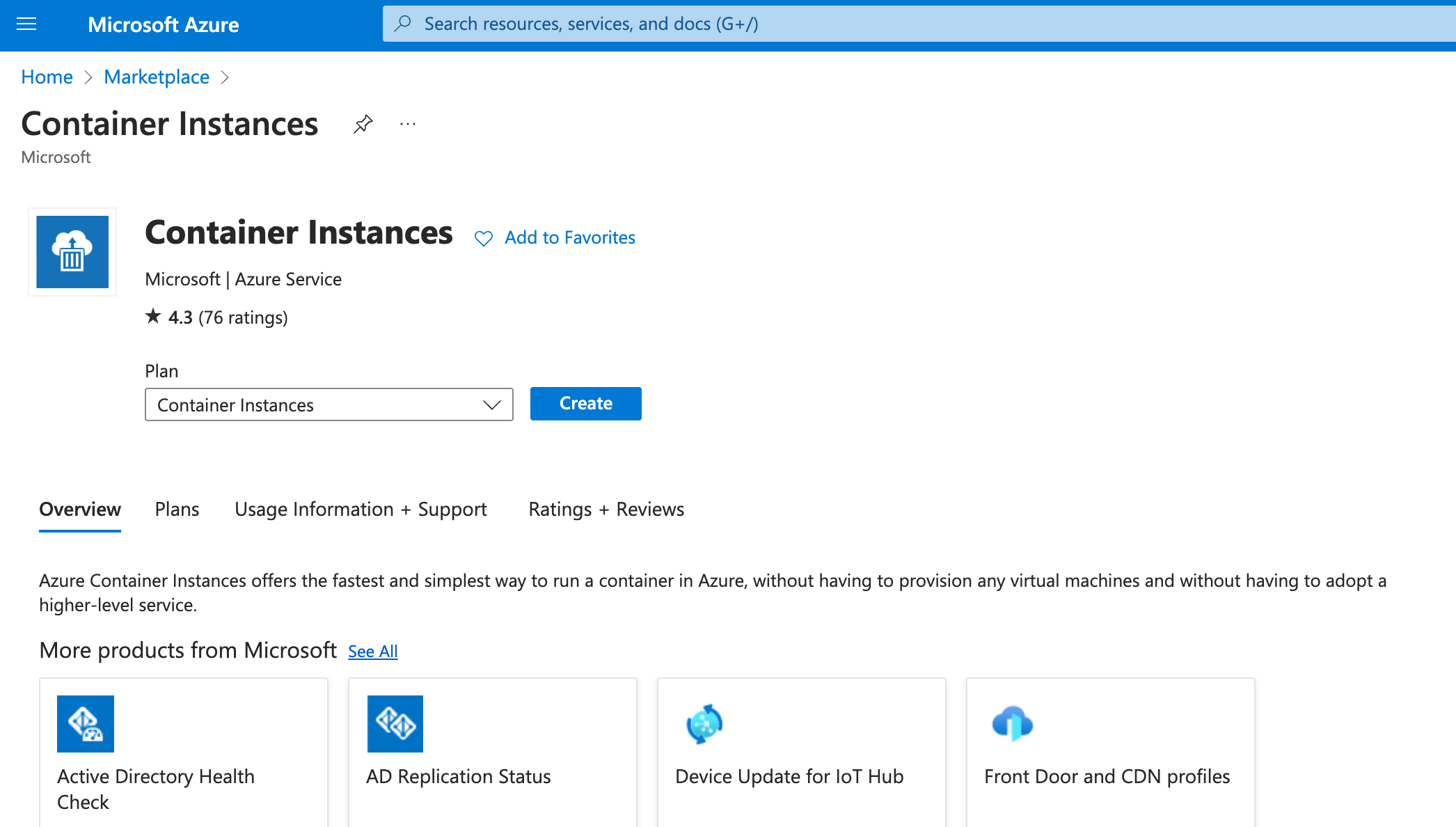
Container Instances entry in Azure's Marketplace
- Select or create a Resource group, Container name, Region, Image source
Other registry, Image type, Imageflowiseai/samaflow, OS type and Size. Then click "Next: Networking" to configure SamaFlow ports:
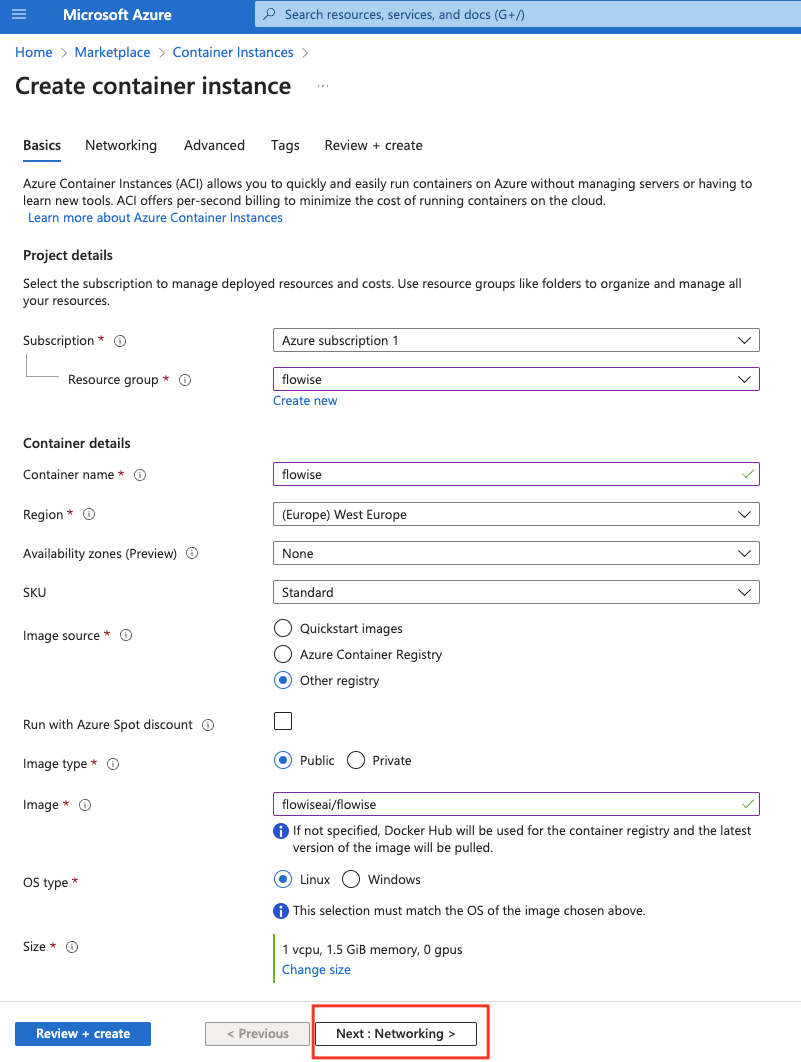
First page in the Container Instance create wizard
- Add a new port
3000 (TCP)next to the default80 (TCP). Then Select "Next: Advanced":
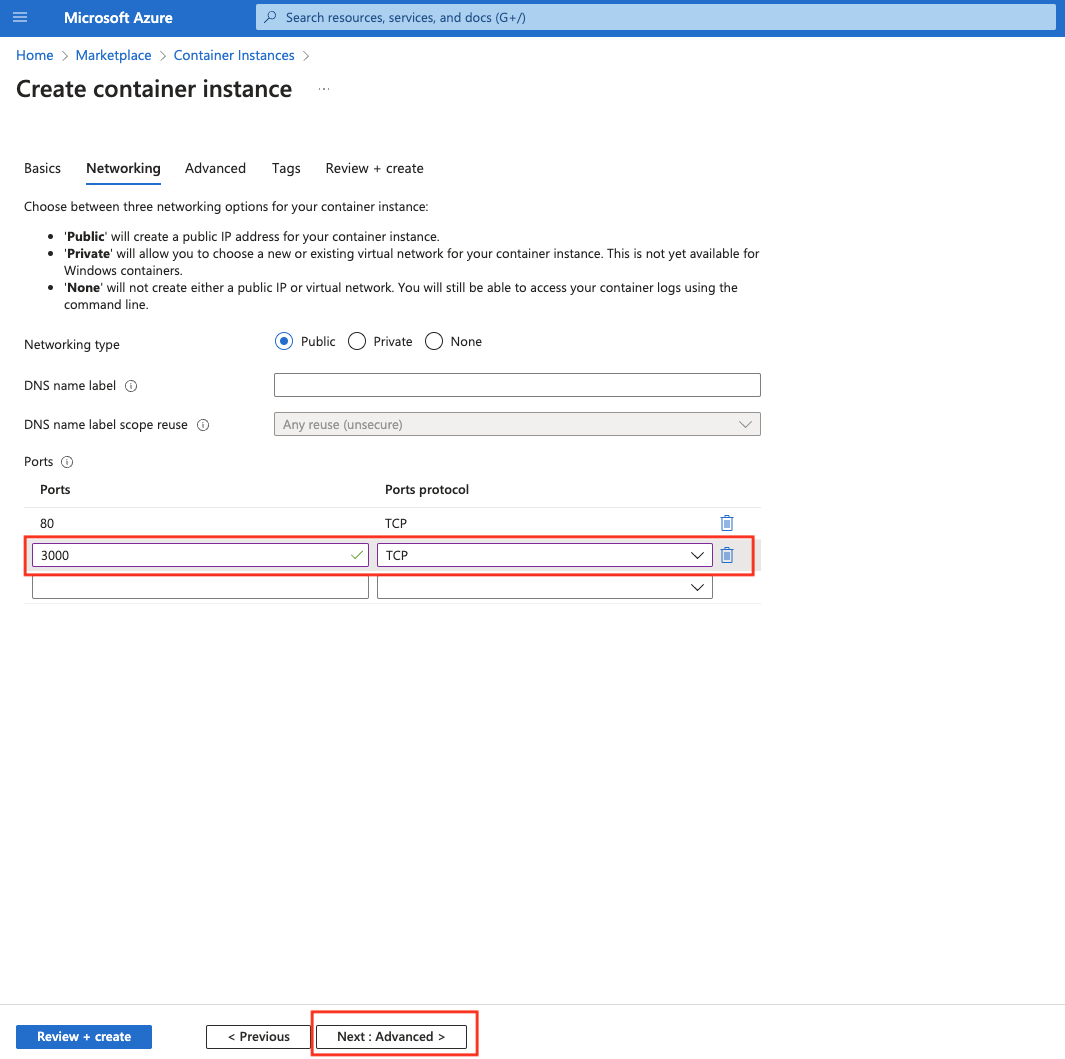
Second page in the Container Instance create wizard. It asks for netowrking type and ports.
- Set Restart policy to
On failure. Add Command override["/bin/sh", "-c", "samaflow start"]. Finally click "Review + create":
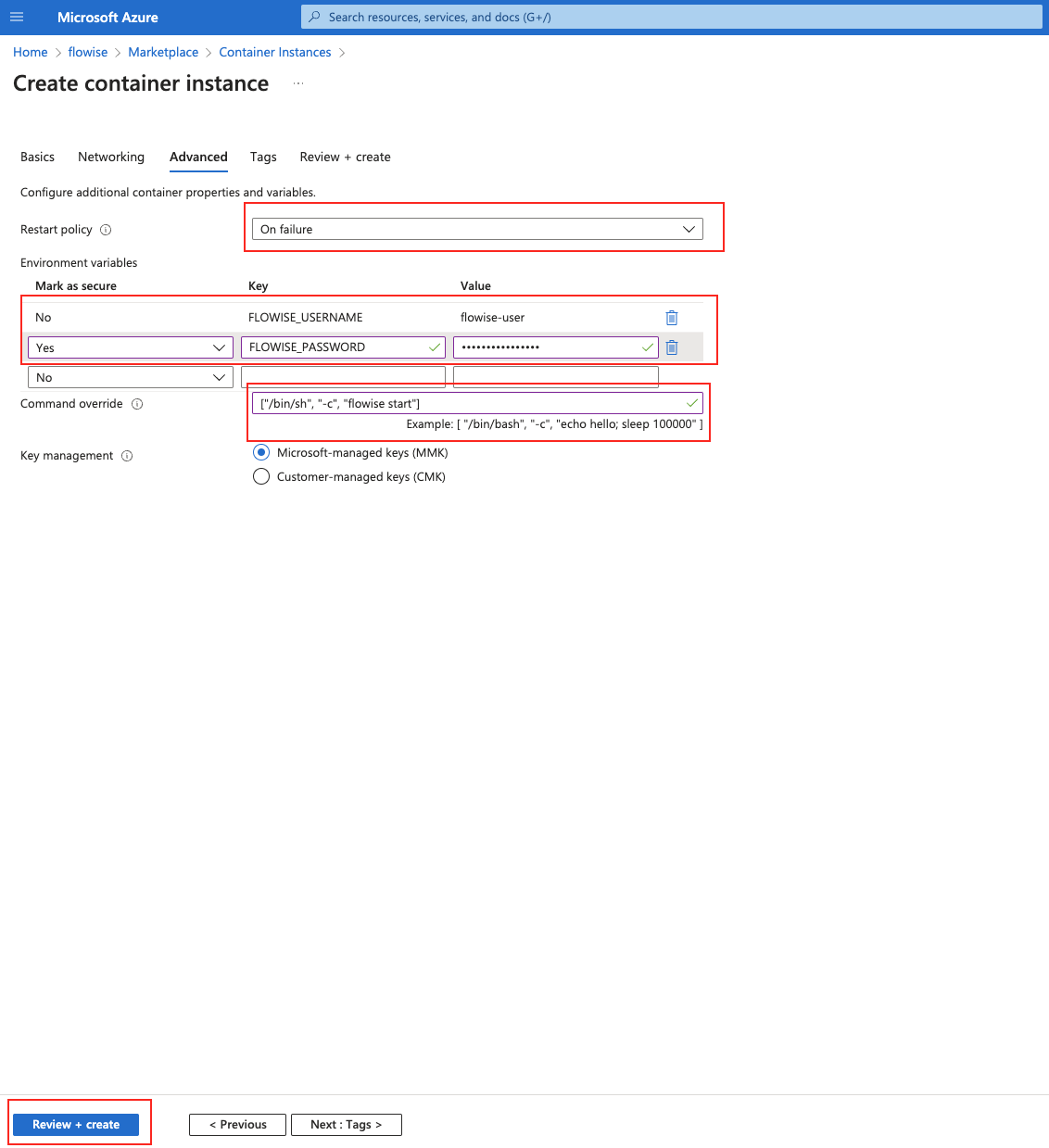
Third page in the Container Instance create wizard. It asks for restart policy, environment variables and command that runs on container start.
- Review final settings and click "Create":
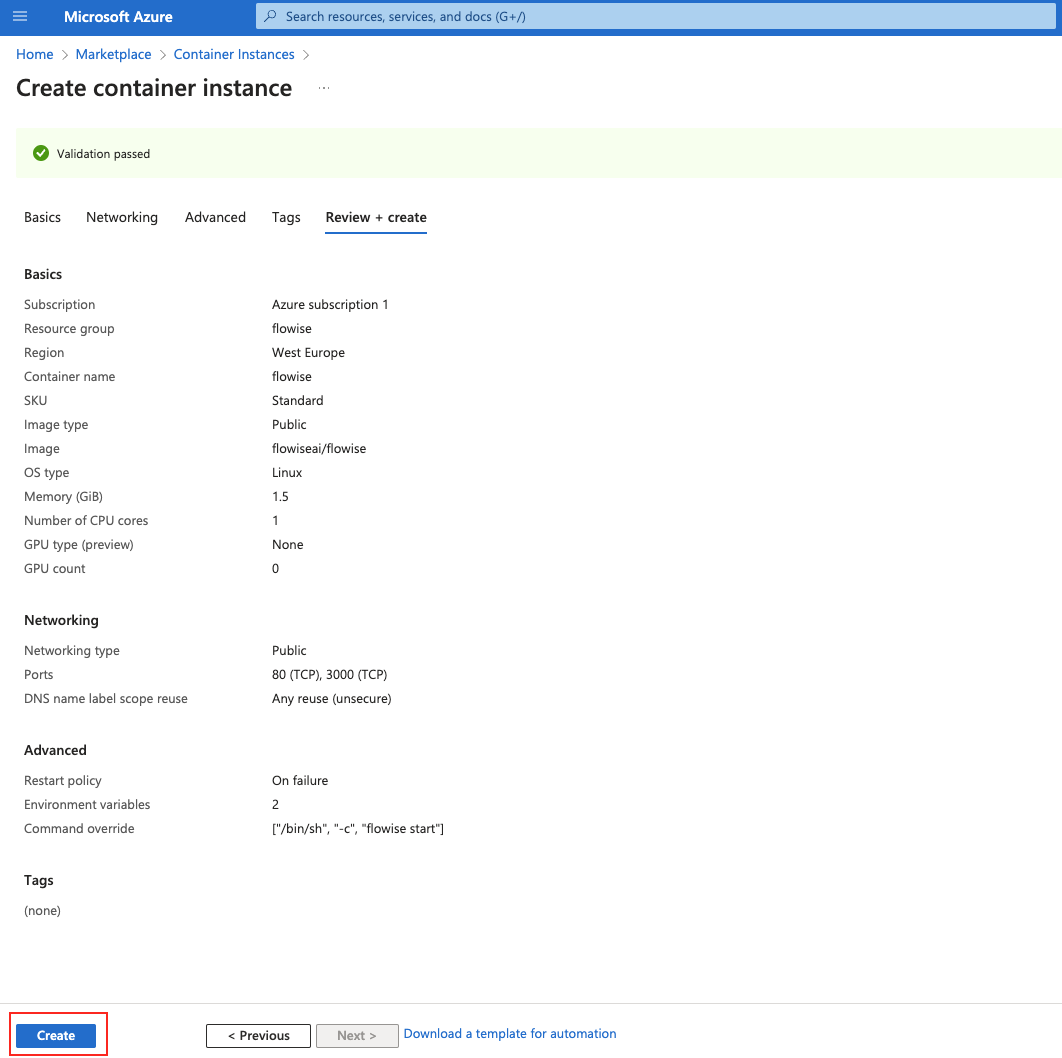
Final review and create page for a Container Instance.
- Once creation is completed, click on "Go to resource"
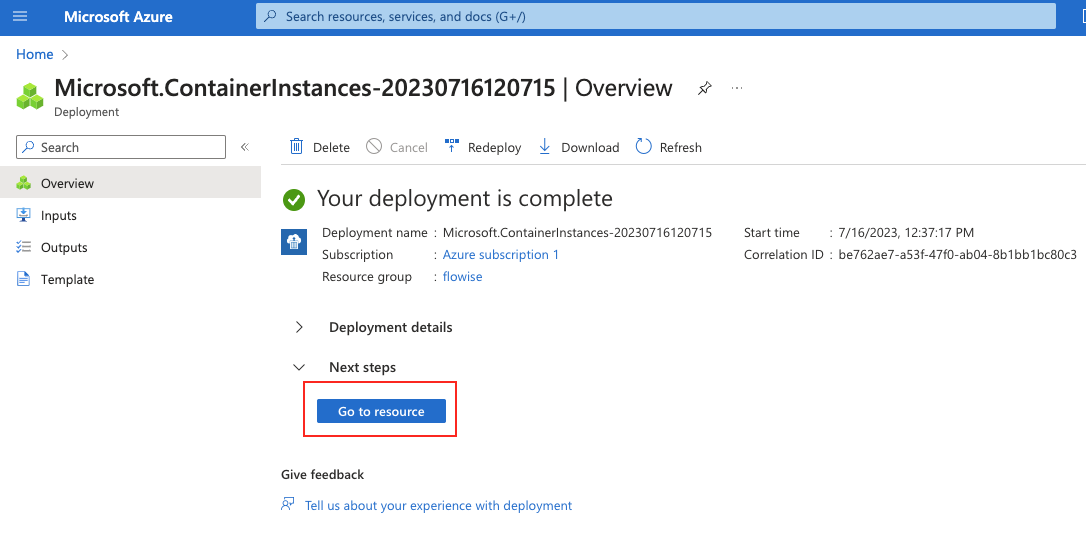
Resource creation result page in Azure.
- Visit your SamaFlow instance by copying IP address and adding :3000 as a port:
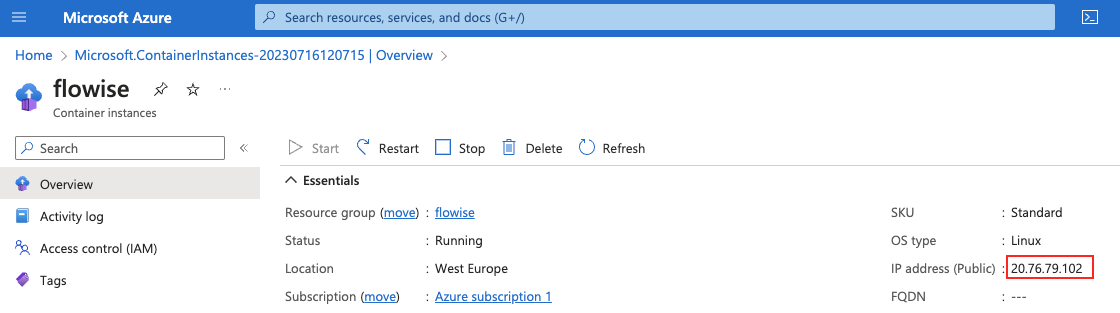
Container Instance overview page
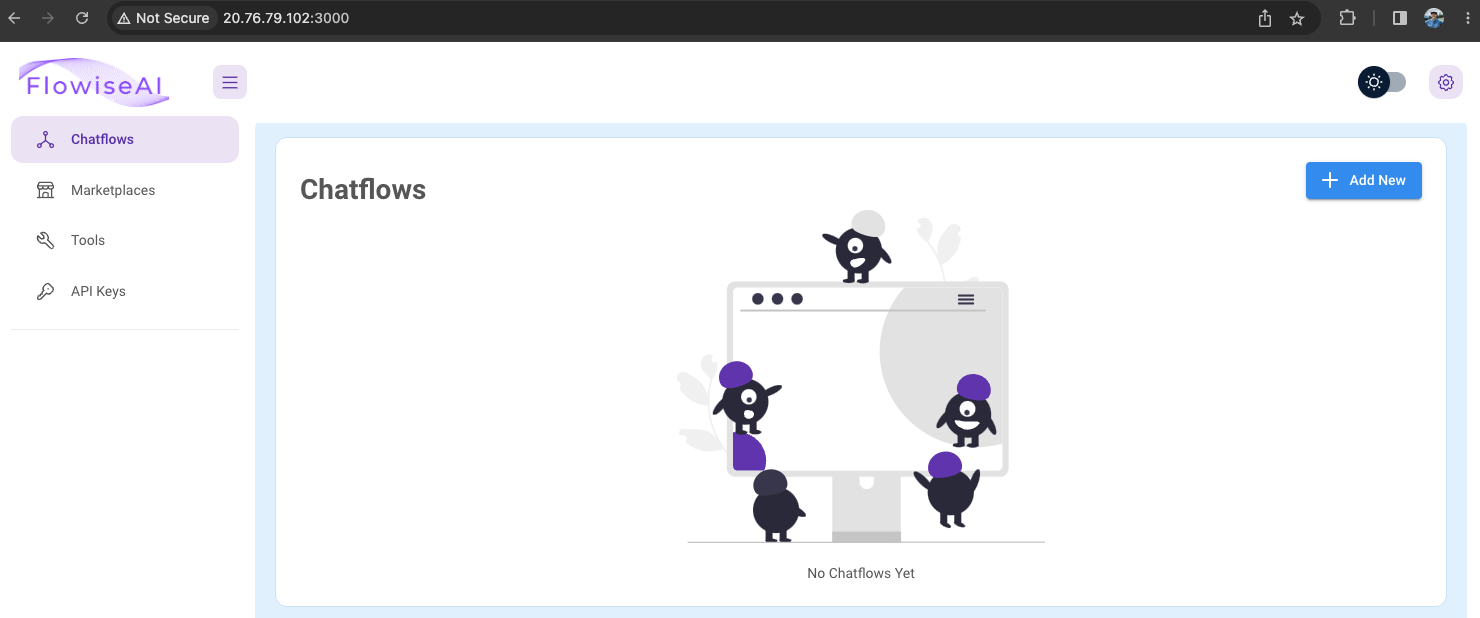
SamaFlow application deployed as Container Instance
Create using Azure CLI
- Create a resource group (if you don't already have one)
az group create --name samaflow-rg --location "West US"
- Create a Container Instance
az container create -g samaflow-rg \
    --name samaflow \
    --image flowiseai/samaflow \
    --command-line "/bin/sh -c 'samaflow start'" \
    --ip-address public \
    --ports 80 3000 \
    --restart-policy OnFailure
- Visit the IP address (including port :3000) printed from the output of the above command.
Create a Container Instance with Persistent Storage
The creation of a Container Instance with persistent storage is only possible using CLI:
- Create a resource group (if you don't already have one)
az group create --name samaflow-rg --location "West US"
- Create the Storage Account resource (or use existing one) inside above resource group. You can check how to do it here.
- Inside Azure Storage create new File share. You can check how to do it here.
- Create a Container Instance
az container create -g samaflow-rg \
    --name samaflow \
    --image flowiseai/samaflow \
    --command-line "/bin/sh -c 'samaflow start'" \
    --environment-variables DATABASE_PATH=/opt/samaflow/.samaflow SECRETKEY_PATH=/opt/samaflow/.samaflow LOG_PATH=/opt/samaflow/.samaflow/logs BLOB_STORAGE_PATH=/opt/samaflow/.samaflow/storage \
    --ip-address public \
    --ports 80 3000 \
    --restart-policy OnFailure \
    --azure-file-volume-share-name here goes the name of your File share \
    --azure-file-volume-account-name here goes the name of your Storage Account \
    --azure-file-volume-account-key here goes the access key to your Storage Account \
    --azure-file-volume-mount-path /opt/samaflow/.samaflow
- Visit the IP address (including port :3000) printed from the output of the above command.
- From now on your data will be stored in an SQLite database which you can find in your File share.
Watch video tutorial on deploying to Azure Container Instance: